What I found inside my own laptop
My laptop went painfully slow about three days ago. I assumed it was the usual stuff — dust in the fan, my C drive filling up, too many things starting at boot, or some Windows update chewing through everything in the background. It was none of those. My processor had been quietly locked to a third of its speed, and I could undo it in about five minutes once I knew where to look.
Lenovo V15-IIL · Intel i5-1035G1 · Windows 11
| Power my CPU got | 6 W | it should get 15 |
| Panic temperature | 70 °C | it should be 100 |
| Speed I was getting | 991 MHz | never moved, ever |
| Speed I paid for | 3600 MHz | never once saw it |
two separate locks, stacked on top of each other
I was sure it was “interrupts”
Where I started
My laptop felt like it was working hard doing nothing. Fan spinning, everything laggy, opening a browser tab took forever. I’d read that background hardware signals called interrupts can eat your CPU without showing up as a normal program, and that felt like exactly my problem.
So I checked. Windows can measure this directly, and there are known numbers for what “bad” looks like:
| What I measured | Mine | A real problem looks like |
|---|---|---|
| Time spent on interrupts | 1 – 3% | 15% or more |
| Interrupts per second | ~9,000 | 50,000+ |
| Disk waiting in queue | 0.02 | 2+ |
All fine. My theory was dead in about two minutes. But the laptop was still slow, so something else was going on.
Then I looked at the actual speed my CPU was running at, and that’s where it got strange. 991 MHz, over and over. It never changed. Not when idle, not when busy. A healthy CPU speeds up and slows down constantly. Mine was frozen at one number.
I wanted to be certain I was really pushing it, so I had Claude write me a PowerShell script to hammer every core at once. The idea is simple: start 8 separate background jobs — one for each of my 8 cores — and have each one sit in a tight maths loop. No sleep, no waiting on files, no pauses. Just floating-point sums as fast as the chip can chew them until the timer runs out:
$jobs = 1..8 | ForEach-Object {
  Start-Job {
    $e = (Get-Date).AddSeconds(20); $x = 0.0
    while ((Get-Date) -lt $e) { $x += [math]::Sqrt([math]::Sin($x)+2) }
  }
}
Because each job is its own process, Windows spreads them across all 8 cores. I then checked every core individually rather than trusting the overall average — and they were all maxed out:
c0=100%  c1=100%  c2=100%  c3=100%
c4=100%  c5=100%  c6=100%  c7=100%
Speed:  991 MHz   <- completely unmoved
Eight cores screaming flat out, and the speed didn’t budge by a single MHz. That’s when I knew something was actively holding it down.
Everything I tried that didn’t work
The long middle bit
I want to be honest about this part, because it was most of the time I spent. Seven dead ends before I found anything.
01 · Killing background junk
Didn’t fix it. I found Flock, our regular messaging app, quietly starting up hidden and eating 87% of a CPU core, all day, forever. I also had SQL Server and a couple of other dev tools launching at every boot. I turned all of it off. Genuinely worth doing — but the laptop was still stuck at 991 MHz.
02 · Windows had been warning me for 77 hours
First real clue. I dug into Event Viewer, which I normally never open (well, not on my local system for sure), and found this sitting there:
"The speed of processor 7 is being limited by system
 firmware. The processor has been in this reduced
 performance state for 278918 seconds."
278,918 seconds is 77 hours — almost exactly the three days I’d been suffering. So this wasn’t a mystery to my laptop at all. It knew exactly what it was doing, knew precisely when it started, and had been writing it down the whole time. “Firmware” means the low-level software baked into the machine itself, underneath Windows.
03 · Every Windows power setting
Didn’t fix it. Power plan set to maximum. Power mode switched off “Best power efficiency” (it was on that, which annoyed me, but changing it did nothing). Turbo set to aggressive. All of it. Not one MHz of difference.
04 · Intel’s thermal software
Didn’t fix it. There’s an Intel service running on most laptops that manages heat and power. Mine was from 2020. I stopped it completely — if that service was throttling me, the speed should jump. Nothing. Turned it back on.
05 · Was it just overheating?
Didn’t fix it. I’d opened the laptop and cleaned it a couple of months back, so I doubted it. And there’s a neat way to tell: overheating makes the speed bounce up and down as the chip heats and cools. Mine was a flat line. Flat means a fixed limit, not heat.
06 · My taped-up charger
Didn’t fix it. My charger had fallen and I’d repaired it with tape, so I figured the laptop might be nervous about how much power it could safely draw. Borrowed a proper 65W Lenovo one from a friend. Zero difference. At least it cost me nothing to rule out.
07 · The four-year-old BIOS
Didn’t fix it. Mine was from December 2020. There was a newer one from 2022. Before flashing anything risky, I read the actual list of changes for every version in between — it was all security patches. Nothing about speed, power or heat. So I downloaded it but didn’t bother installing it as a fix.
08 · There are two speed limits, and the lower one wins
Found it. I installed a free tool called ThrottleStop. It reads and writes the CPU’s own internal control registers directly — to do that it loads a small kernel-level driver, which is why it demands administrator rights. It’s working underneath Windows, at the same level the firmware itself operates at.
And it showed me something Windows simply never tells you. My CPU has two separate settings for how much power it’s allowed to use — and the machine obeys whichever is smaller:
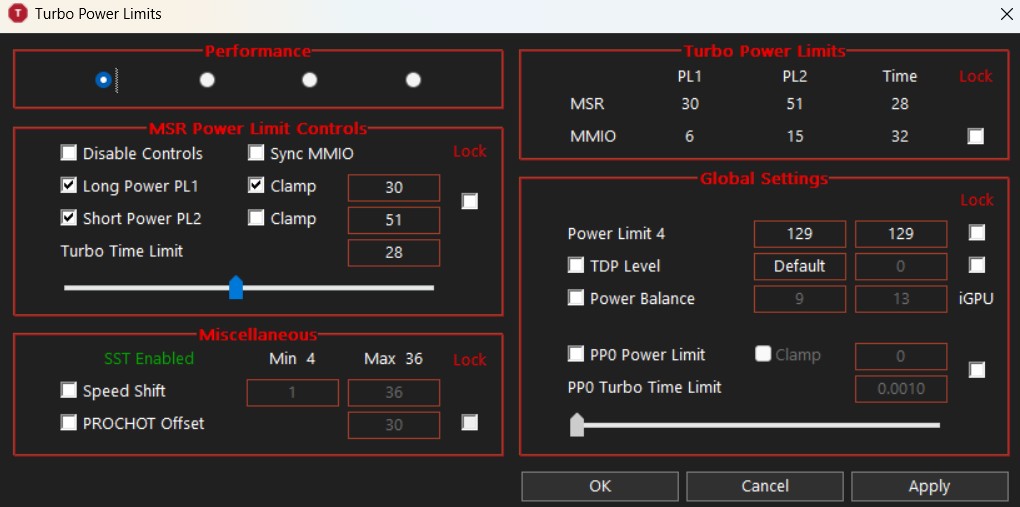
Top right — the two rows. MSR says 30. MMIO says 6. The machine obeys the 6.
Six watts. That’s the whole chip — 4 cores, 8 threads and the graphics — running on less power than a phone charger. Normal for this CPU is 15W. No wonder it never sped up. It physically couldn’t afford to.
I raised it to 30W and nothing happened
Plot twist
Which made no sense. I’d just given it five times more power and it didn’t go any faster. So I went back to the console and read every value on it, instead of only the ones I expected to matter. And there it was, sitting in a corner I’d skipped over a dozen times:
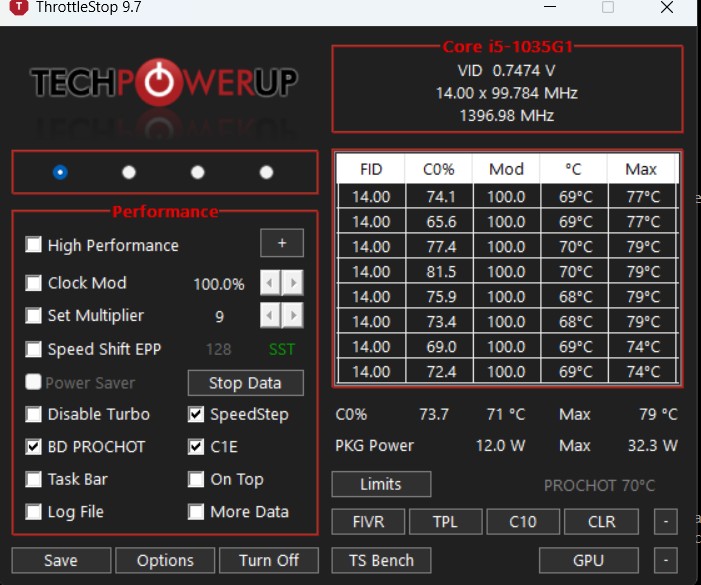
Temperature column: 68, 69, 70, 70, 69, 70°C. Bottom right, in small grey text: PROCHOT 70°C. I’d been looking at this window for an hour.
PROCHOT 70°C
Every Intel CPU has an emergency brake that slams on when it gets too hot. On mine that brake is supposed to trigger at 100°C. Someone had set it to trigger at 70°C instead.
Now looking at the temperature line just above it — 68, 69, 70, 70, 69, 70°C. I was sitting exactly on the panic line. The moment my laptop warmed up even slightly — which is instantly — it hit the emergency brake and dropped to minimum speed.
That explained the thing that had confused me most. When you run out of power, you get a quick burst of speed first, then it settles down. I had no burst at all, ever, from the very first millisecond. That’s not running out of power. That’s a brake being held down.
Two checkboxes, basically
The fix
Please don’t copy this blindly
These settings exist because someone decided the machine should be protected a certain way. I only changed the two I’d actually understood, and I moved the temperature limit to 90°C rather than the maximum precisely because I wanted margin left over.
Override the wrong register and you can make your laptop unstable, push heat into parts that don’t protect themselves the way the CPU does, or lose work to sudden shutdowns — and on some hardware one can genuinely damage it. Need to find out what each of these values mean before deciding to change it.
Fix 1 — Untie the power limit. In ThrottleStop, open TPL and tick Sync MMIO. That drags the hidden low limit up to match the higher one. (6 W → 30 W)
Fix 2 — Move the panic temperature. Same window, change PROCHOT Offset from 30 to 10. I didn’t set it to 0 — I wanted to keep some safety margin. (70 °C → 90 °C)
Fix 3 — Make it stick. My laptop resets both of these every time it boots. So I set up a scheduled task that runs ThrottleStop automatically at login. (runs as admin, no popup)
| Before | After | |
|---|---|---|
| Power the CPU can use | 6 W | 12 W steady |
| Short bursts | 6 W | 32.3 W |
| Panic temperature | 70 °C | 90 °C |
| Actual speed | 991 MHz | 2268 MHz |
| Peak speed seen | 991 MHz | 2800 MHz |
It’s still not the full 3.6 GHz — this is a budget laptop, one which is 6 years old, with one small fan and I wasn’t expecting miracles. But I’ve gone from a machine welded to 991 MHz to one that sits around 2268 MHz and peaks at 2800. That’s roughly two and a half times the speed I had three days ago, from two checkboxes. It’s the difference between “this thing is broken” and “this is fine” — and it genuinely feels like a different laptop.
So who capped it at 6W, and why?
The bit I still can’t answer
I’ll be straight: I don’t know for certain. I found the cap and I got round it, but I never proved what put it there. Here’s what I can say.
It wasn’t Windows. I tried every power setting Windows has and not one of them moved the number. The cap lives in the embedded controller — a small chip on the motherboard running Lenovo’s own firmware, which handles charging, fans and power budgets. It’s always powered, and it programs these limits on every boot, before Windows even starts loading.
As for why, these are my best guesses, most likely first:
1. The controller got stuck in a safe mode
My best guess. The clue is that event log entry — the firmware said it had been limiting me for 77 hours, almost exactly the three days I’d been suffering. So my laptop wasn’t always like this. Something flipped it. That chip never fully powers off, so if it hits an odd power event it can latch into a cautious state and simply stay there.
2. My taped-up charger
It fell, I repaired it with tape, and a charger that can’t properly identify itself is exactly the sort of thing that would make the controller nervous about how much power it can safely hand out. Borrowing a good charger didn’t undo it — but if the state is already latched, swapping the cable wouldn’t clear it.
3. My worn-out battery
It’s at 79% health after 1,356 charge cycles, well past what it’s rated for. Part of the power budget is worked out from what the battery and charger can supply between them, so a tired battery shrinks it. Plausible contributor — though the charger test makes me think it isn’t the main cause.
4. A silent update
A Lenovo Vantage update or a driver push could have applied a new power policy around that time. I have no evidence for this one, but the timing window fits and I can’t rule it out.
Stuff I learned the hard way
What I’d tell someone else
Placebo, and my own measuring tool lying to me
Windows kept reporting 991 MHz the entire time — even after fixes that definitely worked. Turns out that reading is unreliable when Hyper-V is running (WSL and Docker Desktop are both running on my machine). I spent hours trusting a number that had silently stopped being true.
At one point I said “it feels a bit faster, but that’s probably placebo.” It wasn’t placebo — the fix had already worked, and my benchmarks were reading that broken speed number. I was right and my tools were wrong.
Read every line, not just the interesting ones
PROCHOT 70°C was on my screen for an hour before I actually read it.
Lenovo V15-IIL (82C5) · Intel Core i5-1035G1 · Windows 11 Home
Tools I used: Event Viewer · powercfg · HWiNFO64 · ThrottleStop 9.7
Still on my list: battery is at 79% health after 1356 cycles